OS Compliance: From Truth to Automated Fix

The Drift Nobody Tracks Until It Breaks Something
Most teams know what OS version each device should be running. That information lives in NetBox, in a spreadsheet, or in someone's head. What they don't know — not with any real confidence — is what version is actually running right now, across every device, on every platform. Checking means SSHing into each box, parsing output that looks different depending on whether it's Arista, Juniper, or Cisco, and then cross-referencing that against the inventory. Nobody does this weekly. Most teams do it after something goes wrong.
Why This Matters
A device one minor version behind its approved baseline is easy to dismiss. But that version difference can mean a missing security patch, an unfixed memory leak, or a behavior that changed in a dot release and breaks something downstream. The harder problem isn't identifying the gap — it's the work that follows: figuring out which devices are affected, opening a ticket for each one, coordinating with the team that runs the playbooks, and confirming it actually got done. That chain of handoffs is where things stall. This workflow handles it without the chain.
How It Works
Two workflows handle the full cycle. The first one audits and signals. The second picks up from there and remediates. They run on independent schedules and hand off through ServiceNow — a Catalog Task created by Workflow 1 has to be explicitly approved before Workflow 2 will touch the device.
Workflow 1 — OS Version Compliance Audit

Workflow 1 runs every day at 08:00. It connects to all devices in Pool Alpha, compares what's running against what NetBox says should be running, and creates a ServiceNow Catalog Task for every device that's out of line. The email report goes out regardless of how many mismatches it finds.
- SSH to each device: Connects to the target pool via Netmiko and runs "show version". Output is parsed per-platform — Arista, Juniper, and Cisco each format it differently.
- Pull the expected version from NetBox: Reads "custom_fields.os_version" for each device. That field is the baseline. If it's not set, the device gets flagged separately.
- Compare and classify: A Python node does the diff. An exact match means the device is clean. Anything else goes on the non-compliant list.
- Open a ServiceNow incident per device: High priority, assigned to NetOps, with the actual version, the desired version, and the device hostname in the description. No vague titles.
- Generate the CSV and send it: A timestamped report goes out by email with the full audit result — every device, every version, every status. Useful even when everything passes.
Workflow 2 — ServiceNow OS Upgrade & Notify

Workflow 2 runs every 4 hours (00:00, 04:00, 08:00, 12:00, 16:00, 20:00 server timezone). Each cycle queries ServiceNow and processes whichever Catalog Tasks are both Approved and Open at that moment. If no tasks match, the run completes with no action. The workflow doesn't touch a device unless its task has been explicitly approved.
- Query ServiceNow for open OS Upgrade tickets: Pulls only incidents in Open state with "OS Upgrade" in the description. The device list comes from there — nothing hardcoded.
- Build the Ansible inventory on the fly: A processing node extracts hostnames and IPs from the ticket data and constructs the inventory at runtime. No static hosts file to maintain.
- Run the playbook: Executes against each device using its stored credentials from the vault. The playbook path is "/playbooks/save_running_config.yaml".
- Close the tickets: On successful execution, each ServiceNow incident gets resolved. The audit trail in ITSM reflects what actually happened, not just what was planned.
- Send the results: Email with a per-device breakdown — which ones passed, which failed, and what the Ansible output was for each.
NetBox Defines the Baseline
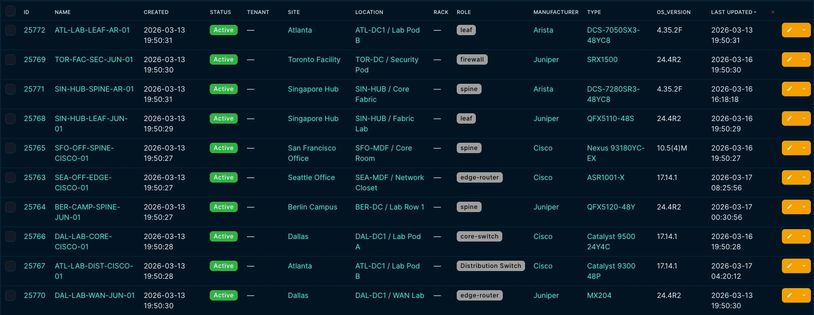
Workflow 1 doesn't carry any hardcoded version expectations. It reads "custom_fields.os_version" from NetBox for each device in scope and treats that as the approved target. Whatever SSH returns gets compared against it. If the field isn't populated for a device, that gets flagged too, because a missing baseline is its own kind of drift.
The screenshot below shows the device list with both the current and desired version fields
visible. That's the starting point for every run.
Setting Up the Pool and the Schedule

Before a workflow runs against anything, it needs to know two things: which devices to target, and when to run. Both are configured inside Flow Weaver — not in a separate config file, not in the playbook, and not in a shared doc that someone has to remember to update.
Flow Weaver — Pool Alpha with 10 members across Arista, Juniper, and Cisco

The pool configuration defines the device scope. Pool Alpha contains the ten devices across Arista, Juniper, and Cisco that the audit targets. The pool is defined once and reused across workflows. Adding or removing a device from the pool updates every workflow that references it.
Flow Weaver — scheduling: WF1 daily 08:00, WF2 every 4 hours

The scheduling screenshot shows both jobs active. Workflow 1 runs daily at 08:00. Workflow 2 runs every 4 hours. Each fires independently — running the audit doesn't trigger remediation, and running remediation doesn't require a fresh audit first.
Flow Weaver — execution history showing completed runs for both workflows

Flow Weaver — manual test run against lab device node-l1 prior to production scheduling (trigger: Regular Run · runtime: 2026-03-15 15:52 · upgrade_status: complete · os_version: 17.14.1)
What Came Back From Workflow 1
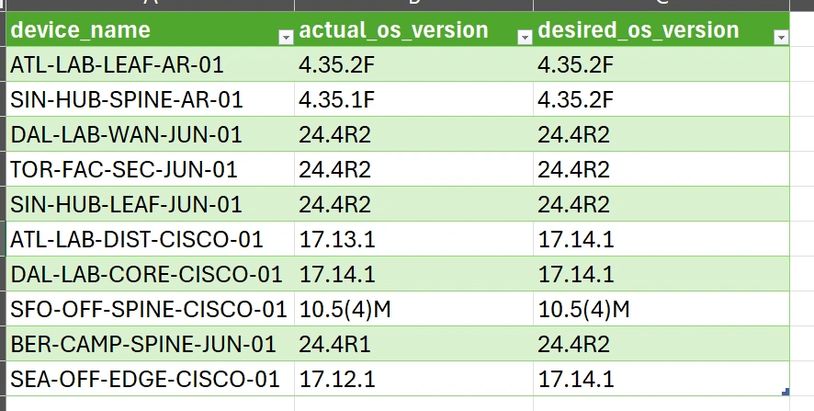
Ten devices across three platforms — Arista EOS, Juniper Junos, and Cisco IOS XE. Four of them were running something other than what NetBox said they should be. Each of the four got a ServiceNow ticket. The other six were logged as clean. The CSV below is the exact output from that run.
Setting Up the Pool and the Schedule

Devices 0–3 result array

Devices 4–7 result array

Devices 8–9 result array + run summary

ATL-LAB-DIST-CISCO-01:
Open. Approval: Requested
ATL-LAB-DIST-CISCO-01:
Closed Complete . Approval: Approved
SIN-HUB-SPINE-AR-01:
Open. Approval: Requested
SIN-HUB-SPINE-AR-01: Closed Complete. Approval: Approved
BER-CAMP-SPINE-JUN-01:
Open. Approval: Requested
BER-CAMP-SPINE-JUN-01: Closed Complete. Approval: Approved
ATL-LAB-DIST-CISCO-01 — upgrade_status: complete · os_version: 17.14.1
SIN-HUB-SPINE-AR-01 — upgrade_status: complete · os_version: 4.35.2F
BER-CAMP-SPINE-JUN-01 — upgrade_status: complete · os_version: 24.4R2
SEA-OFF-EDGE-CISCO-01 — upgrade_status: complete · os_version: 17.14.1
Reports That Actually Go Out
info@networkingdev.com — OS Compliance Report (WF-1984)
info@networkingdev.com — Ansible Remediation Summary (WF-1991)
info@networkingdev.com — Ansible Remediation Summary (WF-1991)

Both workflows send an email at the end of each run. Workflow 1 sends the compliance CSV (OS_incident_report.csv) as an attachment — every device, its version status, and whether a Catalog Task was opened.
info@networkingdev.com — Ansible Remediation Summary (WF-1991)
info@networkingdev.com — Ansible Remediation Summary (WF-1991)
info@networkingdev.com — Ansible Remediation Summary (WF-1991)
Workflow 2 sends an email with OS_incident_complete_report.csv attached — the list of devices whose OS was updated in that cycle, generated by the playbook report block. The screenshots below are from the actual runs.